| How To Cancel Conferences Online? |
How To Cancel Conferences Online?
The instructions below are intended to show schools how to configure conference schedules so that parents can cancel their own conferences. Parents will be able to cancel their own conference instead of contacting the teacher/school to cancel.
If you are a parent who wants to cancel a parent-teacher conference, please see our instructions for cancelling a conference online.
There are other ways to do this, but this is the most straightforward way to enable the cancellation option on all schedules.
- Log in. You must have admin privileges to proceed.
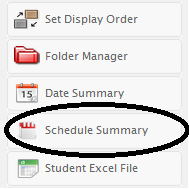
- Click on “Schedule Summary” in the left column.
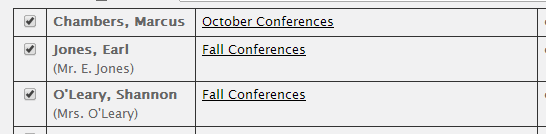
- Select the schedule(s) for which you want to enable the cancellation option.
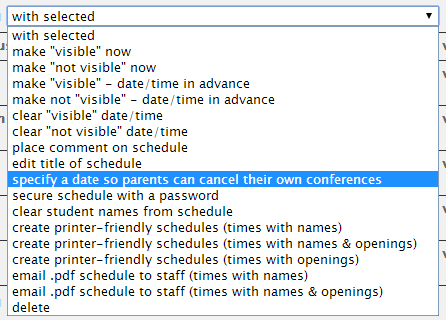
- At the top of the list of schedules, click on the drop-down menu and select “specify a date so parents can cancel their own conferences.”
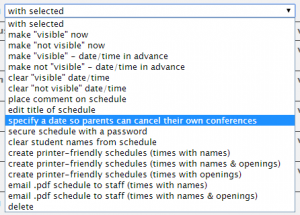
- On the next screen, you will specify the cut-off date. Parents will be able to cancel their conference prior to the date you select by clicking on the calendar.

- Also, you need to specify the cut-off time. Parents will be able to cancel their conference prior to the date/time you select.

- When you have a date/time entered, click on the “Schedule Undo Date” button to apply the cancellation date to the schedules you selected in Step 3.